Get started
This page shows how to install Fresnel and write a first program. We assume you know your way around Lazarus or Delphi: what a form is, what a component is, and how to write an event handler.
Get the sources
Fresnel is developed on GitLab. Clone the repository with git:
git clone https://gitlab.com/freepascal.org/lazarus/fresnel.gitWith git, updating later is simple: git pull. You can also download a zip file from the GitLab page.
The repository contains:
src: the sources of Fresnel;design: the support for the Lazarus IDE;demo: more than 80 small demo programs. Each demo shows one control or one feature. They are the best way to learn.docs: technical documentation.
Install Fresnel in the Lazarus IDE
In Lazarus, choose Package - Open Package File (.lpk) and open design/fresneldsgn.lpk.
Click Use - Install. Lazarus asks to rebuild itself; after the restart you have a new Fresnel page on the
component palette.
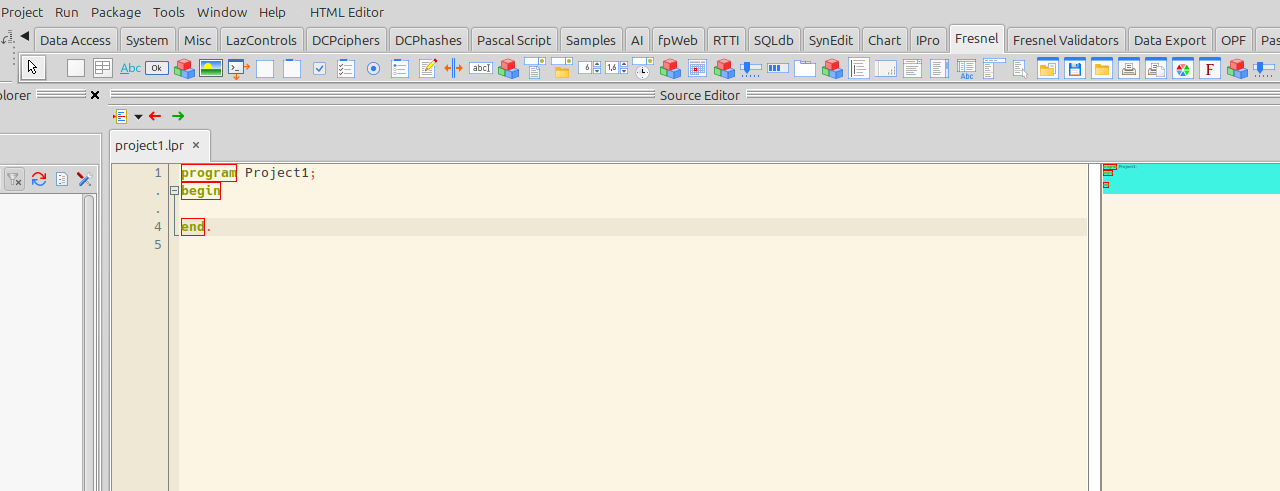
Lazarus compiles the other Fresnel packages automatically when they are needed.
Create a Fresnel application
Choose File - New… and select Fresnel Application in the Project section.
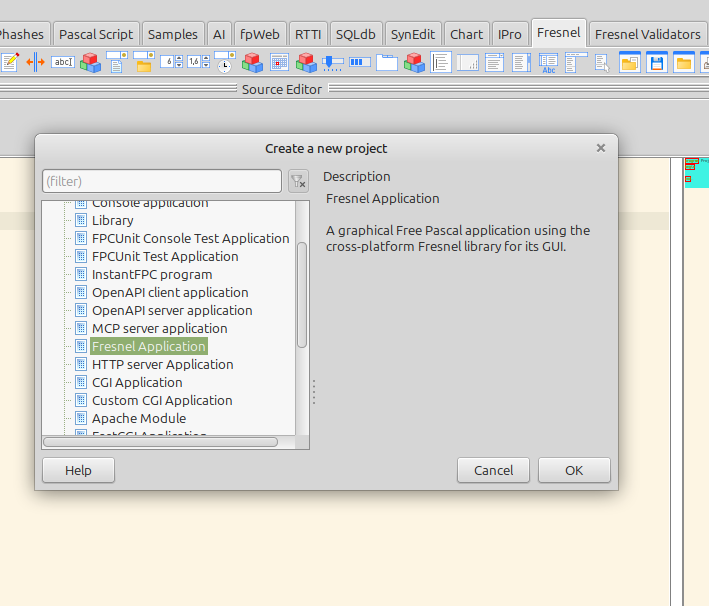
The program file looks very familiar:
program Project1;

{$mode objfpc}{$H+}

uses
  {$IFDEF UNIX}
  cthreads,
  {$ENDIF}
  Fresnel, // this includes the Fresnel widget set
  Fresnel.Forms, Unit1;

begin
  Application.Initialize;
  Application.CreateForm(TForm1, Form1);
  Application.Run;
end.
The only difference with an LCL program is the uses clause: Fresnel and Fresnel.Forms instead of
Interfaces and Forms. The Fresnel unit plays the role of the Interfaces unit: it selects the backend for your platform.
Put some controls on the form
Drop a TBody on the form. Then drop a TLabel and a TButton on the body.
Set the caption of the label to Hello and the caption of the button to Click me.
Double-click the button to create an OnClick handler:
procedure TForm1.Button1Click(Event: TAbstractEvent);
begin
  Label1.Caption:='Hello, Fresnel!';
end;
Notice that the handler receives an Event object, not a Sender. The event contains all the information
about the click: the sender, the mouse position, the buttons and the keys that were pressed.
Run it
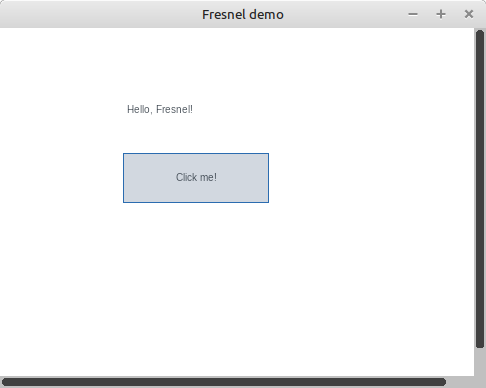
Press F9. You now have a native Fresnel program.
Next: let CSS do the layout
By default, the designer places a new element exactly where you drop it. It does this by writing CSS in the
Style property of the element:
position:absolute; box-sizing:border-box;
left:115px; top:117px; width:50px; height:50px
This feels familiar if you come from the LCL, but it is not how you normally build a Fresnel form: with fixed positions and sizes, the form does not adapt when the window is resized or the text changes. In the screenshot above you can already see the problem: Click me does not fit in 50 pixels, so it is split over 2 lines.
Switch this off in Tools - Options - Environment - Fresnel (uncheck Position absolute), and let CSS place the elements. For example, in the stylesheet of the form:
body {
  display: flex;         /* place the children in a row */
  align-items: center;   /* vertically centered */
  gap: 8px;              /* with 8 pixels between them */
  padding: 16px;
}
When you add a new form with File - New - Fresnel Form, Lazarus also creates a CSS file for it
(unit2.css for unit2.pas). The designer applies your changes while you type, and the CSS is compiled into
your program as a resource.
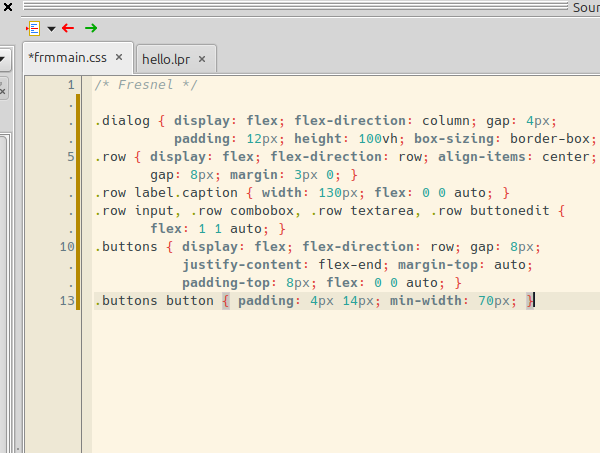
Learn more in Styling with CSS.
Without the IDE
Everything can be done in code, and compiled on the command line with lazbuild:
cd fresnel
lazbuild src/base/fresnelbase.lpk
lazbuild src/fresnel.lpk
cd ../myproject
lazbuild myproject.lpi
Creating an element in code works like creating an LCL control: you create it with an owner, and set its parent.
Body:=TBody.Create(Self);
Body.Parent:=Self;

Toolbar:=TDiv.Create(Self);
Toolbar.Parent:=Body;
Toolbar.CSSClasses.Add('toolbar');   // the stylesheet decides how a toolbar looks

SaveButton:=TButton.Create(Self);
SaveButton.Parent:=Toolbar;
SaveButton.Caption:='Save';
The Fresnel packages
| Package | File | What it contains |
|---|---|---|
| FresnelBase | src/base/fresnelbase.lpk | The heart of Fresnel: CSS engine, layout engine, all controls. No LCL inside. |
| Fresnel | src/fresnel.lpk | The backends for standalone programs. Chooses the right one for your platform. |
| FresnelLCL | src/lcl/fresnellcl.lpk | Use Fresnel inside an LCL application. |
| FresnelDsgn | design/fresneldsgn.lpk | Support for the Lazarus IDE: palette, form designer, CSS editors, project wizard. |
There are more packages, for example for the code editor (SynEdit) and for WebAssembly, but you do not need them to get started.
Learn from the demos
The demo folder has more than 80 demo programs. Most of them also run in your browser on
Try it live, each with a link to its source code.